Workspaces
Workspaces allow you to organize and separate different projects. Each workspace is a self-contained environment for your project files.
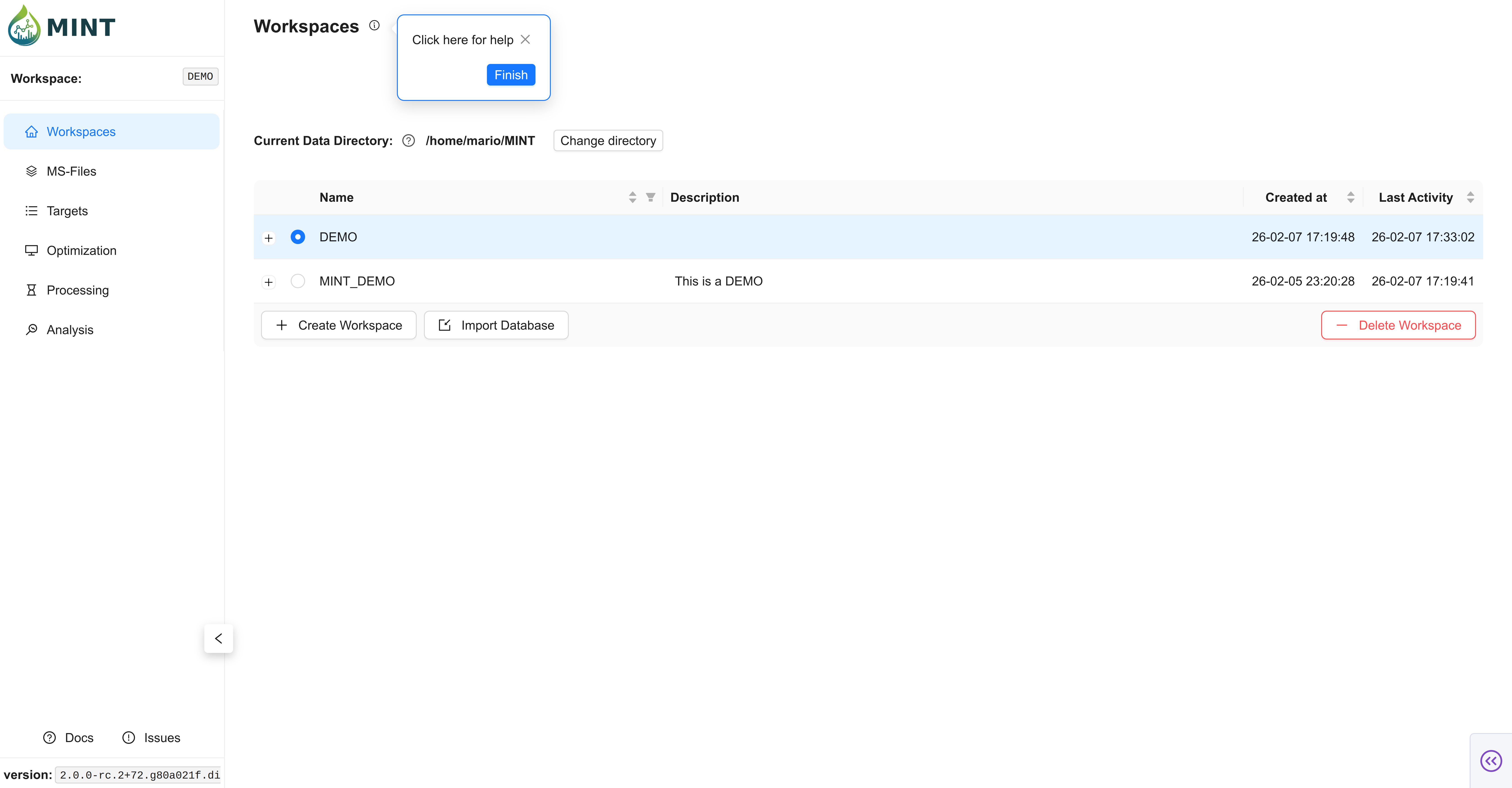
Tip: Click the help icon (small "i" symbol) next to the "Workspaces" title to take a guided tour of this section.
My first Workspace (First Launch)
On first launch, MINT auto-creates a My first Workspace workspace with lightweight demo data so you can preview the interface without importing files. This workspace is only created if no other workspaces exist, and you can keep it or delete it like any other workspace.
Storage Location
All files for a workspace are stored in a subdirectory within your MINT data folder (--data-dir).
- Default Location:
~/MINT(Linux/macOS) orC:/Users/<username>/MINT(Windows) - Active Workspace: The active workspace is displayed in the sidebar under "Workspace:".
Changing the Data Directory
Changing the Data Directory
You can change the location where MINT stores all workspaces.
- Click the
Change Locationbutton next to the "Current Data Directory" display. - Enter the absolute path for the new folder.
- Click
Save & Reload.
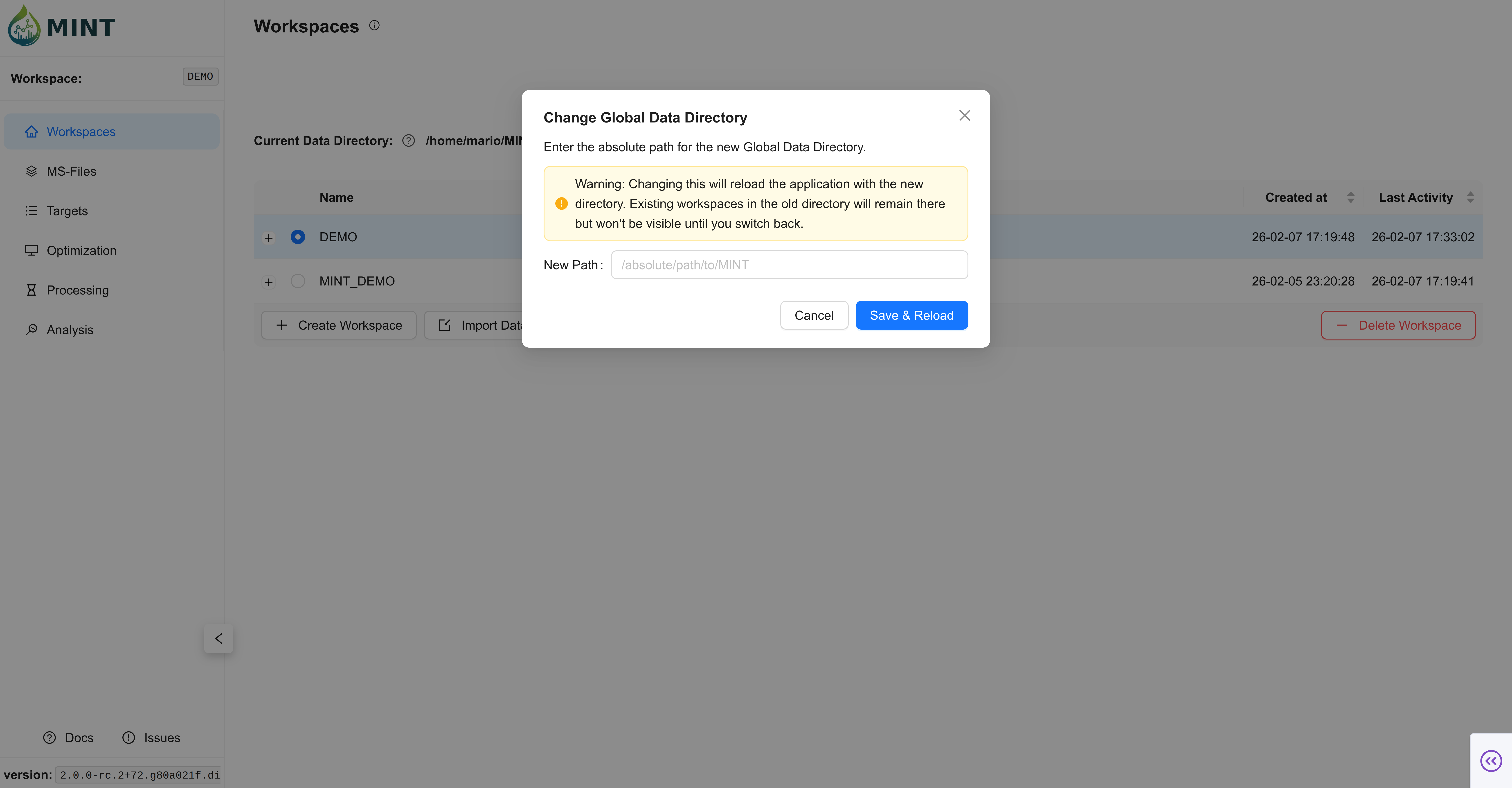
Note: Changing this path will reload the application. Workspaces from the old directory are not moved; you will start with an empty list in the new location until you create new workspaces or move your valid workspace folders manually.
Managing Workspaces
You can manage your workspaces using the controls in the Workspaces tab:
- Create a Workspace: Click the
+ Create Workspacebutton (bottom left). Enter a name in the popup window and clickCreate. - Activate a Workspace: Click on the selection circle in the list. The active workspace is indicated by a text notification and update in the sidebar.
-
Delete a Workspace: Select a workspace and click the
- Delete Workspacebutton (bottom right). Confirm the action in the popup window.Warning: Deleting a workspace will permanently remove the workspace folder and all its contents from your hard drive. This action cannot be undone.
Importing a Database
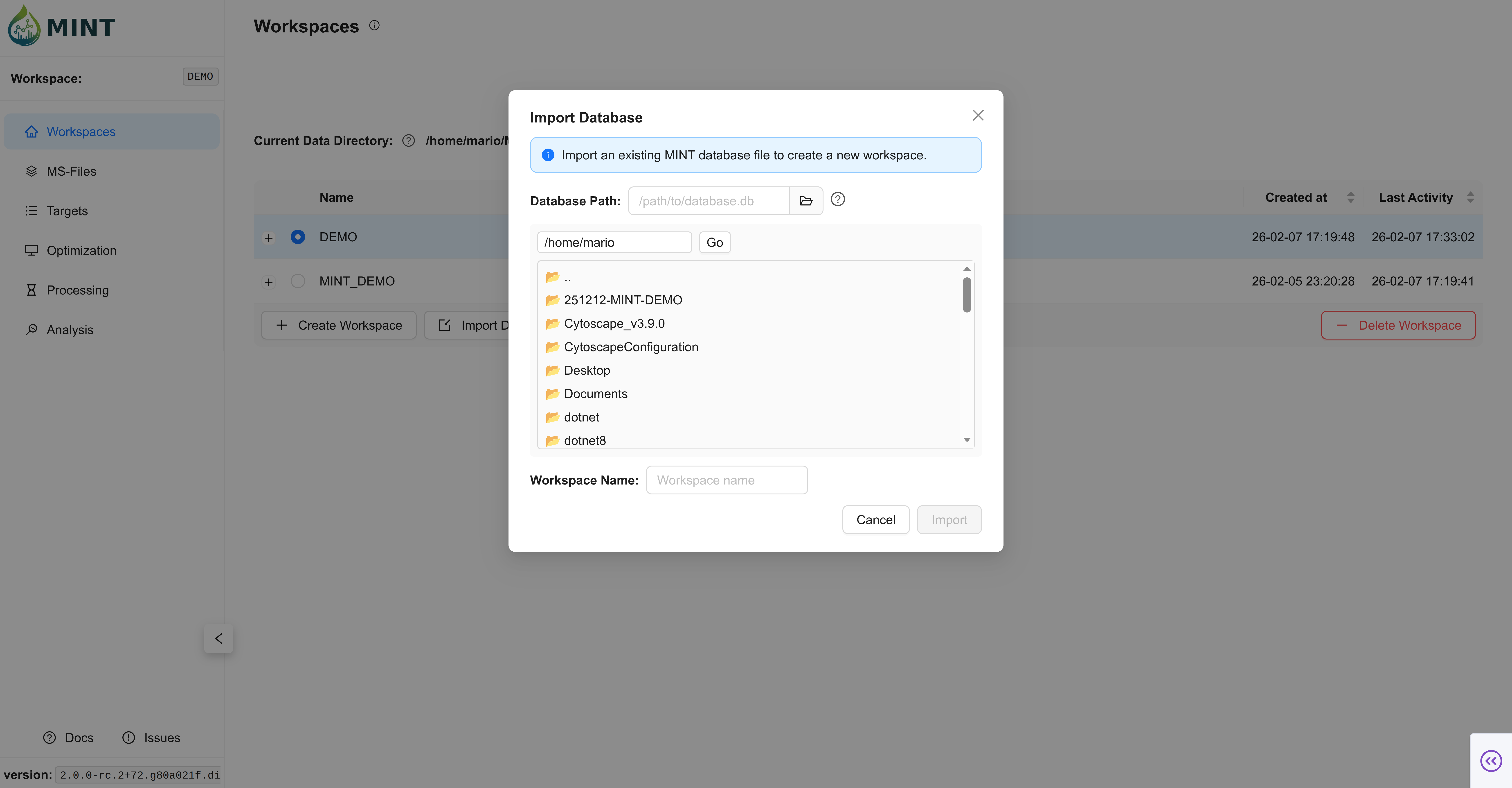
If you have an existing MINT workspace database (.db file) from another machine or a backup, you can import it directly:
- Click the
Import Databasebutton (bottom center). - Database Path: Browse for or enter the absolute path to the
.dbfile. - Workspace Name: Assign a unique name for the new workspace.
- Click
Import.
MINT will copy the database into a new workspace folder, and you can immediately begin working with the restored data.
Workspace Details
Click the + icon next to a workspace name to expand the row. This shows the absolute path to the workspace and a summary of the data it contains (e.g., number of MS-files, targets, and results).
Logging and Troubleshooting
MINT automatically tracks actions and errors to help with debugging.
- Log File: A file named
workspace_mint.logis created inside each workspace folder. It contains a detailed history of operations performed within that workspace. - Terminal Output: If you run MINT from the command line, logs are also printed to the terminal in real-time.
If you encounter an issue, please check the workspace_mint.log file in your workspace directory for error messages before reporting a bug.