Optimization
In the Optimization tab, the EICs are computed first based on the parameters defined in the Targets table. Next, target Regions of Interest (ROIs) (rt_min, rt_max) can be refined so downstream extraction in Processing captures the correct peak region.
A Region of Interest (ROI) in MINT is the chromatogram interval defined by rt_min and rt_max. The rt value is the current target RT inside that interval and is used as the reference point for annotations, optimization, and alignment. See Concepts: ROI for the full definition.
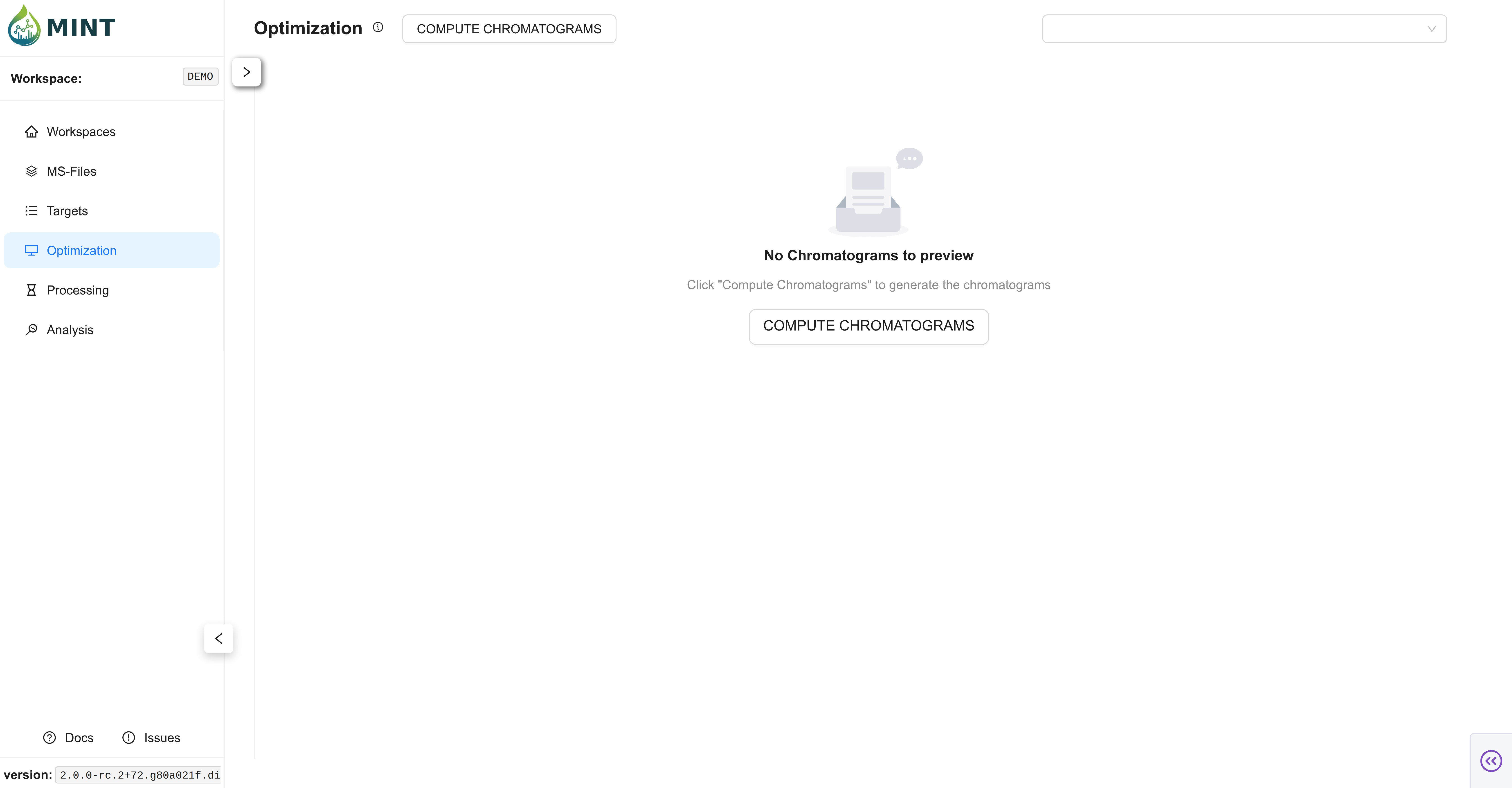
Tip: Click the help icon (small "i" symbol) next to the "Optimization" title to take a guided tour of this section.
Peak Optimization Workflow
- Compute Chromatograms: Click
COMPUTE CHROMATOGRAMSto generate EIC traces. - Preview Cards: Inspect chromatogram previews per target.
- Open Manual View: Click a card (or graph icon) to fine-tune ROI bounds.
- Persist Changes: Auto-save events.
1. Compute Chromatograms
COMPUTE CHROMATOGRAMS opens a modal to configure recomputation and resources.
- MINT validates prerequisites first (requires at least one optimization sample and one target).
- If chromatograms already exist, MINT shows a warning and enables recompute toggles (
MS1,MS2) automatically. - Default resources are auto-detected from your system (CPU/RAM), and batch size is auto-calculated from workload and resource settings.
- If no targets are selected, MINT computes chromatograms for all targets.
- After chromatograms are generated, MINT runs adaptive ROI optimization for targets marked as auto-adjusted during import.
- Targets imported with only
rtreceive a temporary bootstrap ROI (rt ± 5.0 s) so they can be processed immediately; Optimization is where those provisional bounds are refined from the observed chromatogram shape. - During this phase, the progress modal first finalizes chromatogram batches and temporary tables, then loads ROI traces and optimizes bounds in stages so long MS2 jobs remain visibly active.
2. Preview Cards
After computation, Optimization cards provide a quick glance at the data before manual edits.
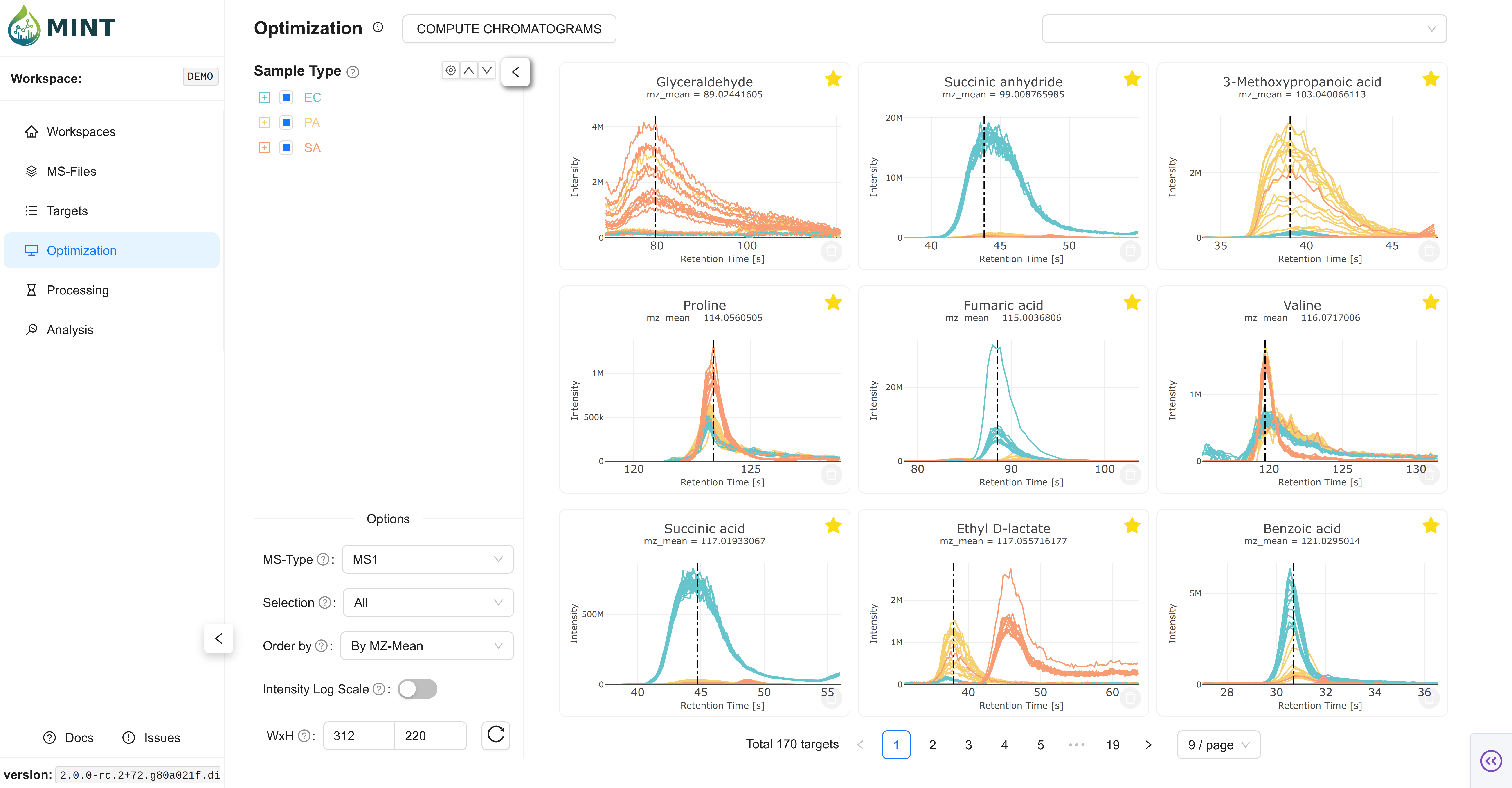
- Card Plot: per-target chromatogram view over the current ROI.
- Bookmark toggle: star targets for later focused processing.
- Delete target: remove target plus related chromatogram/results entries.
- Pagination and sizing: browse with pagination and tune card width/height for your screen.
Preview filters
- Filter by
ms_type(all,ms1,ms2). - Filter by bookmark state (
all,Bookmarked,Unmarked). - Order cards by peak label or m/z.
- Toggle log-y rendering for quick visual contrast checks.
3. Interactive Manual Optimization
Open a target card to launch the detailed modal and adjust ROI bounds directly on the plot. Move across targets without closing the modal. Changes are saved automatically.
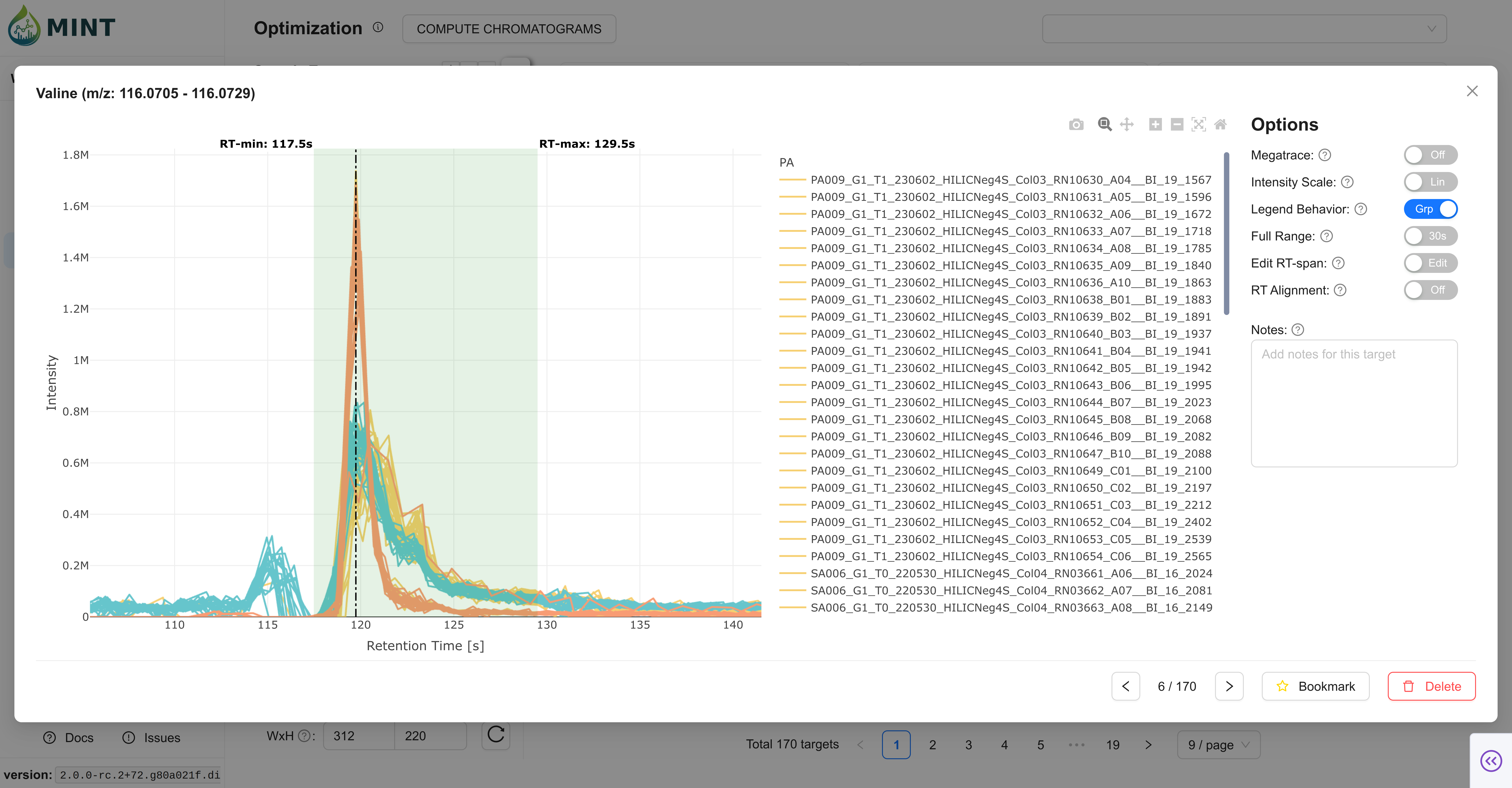
- Edit ROI bounds: drag/resize the ROI when unlocked.
- Lock range: prevent accidental ROI edits.
- Set RT marker: click within the ROI to set/update target RT.
- Scale and grouping: switch linear/log y-axis and group-click legend behavior.
- Notes: edit target notes while inspecting traces.
Advanced modal controls
- Megatrace: aggregated rendering mode for large trace sets.
- Full range: show full chromatogram instead of local window (can be slower).
- RT Alignment: align traces by apex within the current ROI; alignment state is persisted per target. See Concepts: RT Alignment.
4. Auto-save and persistence
MINT includes persistence and consistency behaviors so optimization work is resilient:
- On target navigation (
Prev/Next), changed ROI bounds and RT-alignment state are auto-saved. - On modal close, changed ROI bounds / RT alignment are auto-saved.
- Notes are persisted in navigation flows.
- Use Save when you want immediate explicit commit feedback while staying on the same target.
Card Controls
- Bookmarking a target also marks it as selected (
peak_selection = TRUE). - This keeps bookmarked subsets compatible with Processing filters such as
Bookmarked Targets Only. - At the bottom-left of the Optimization page, adjust card Width and Height to trade off overview density vs detail visibility.