MS-Files
The MS-Files tab is the entry point for your analysis. Here you organize the raw mass spectrometry data that constitutes your workspace. MINT currently supports .mzXML and .mzML file formats for MS data. To import MS files, click the LOAD MS-FILES button. This opens a file browser where you can navigate your filesystem and select the MS files.
Tip: Click the help icon (small "i" symbol) next to the "MS-Files" title to take a guided tour of this section.
The MS-FILES Table
Once loaded, your MS files are displayed in an interactive table. For sample metadata, use LOAD METADATA and import a tabular file (CSV, TSV, TXT, XLS, XLSX). You can also download the template via DOWNLOAD TEMPLATE on the top right corner.
Metadata columns and descriptions
| Column Name | Description |
|---|---|
ms_file_label |
Unique file name; must match the MS file label on disk |
label |
Friendly label to display in plots and reports |
color |
Hex color for visualizations |
use_for_optimization |
True to include in optimization steps (COMPUTE CHROMATOGRAMS) |
use_for_processing |
True to include in processing (RUN MINT) |
use_for_analysis |
True to include in analysis outputs |
sample_type |
Sample category (e.g.; Sample; QC; Blank; Standard) |
group_1 |
User-defined grouping field 1 for analysis/grouping (free text) |
group_2 |
User-defined grouping field 2 for analysis/grouping (free text) |
group_3 |
User-defined grouping field 3 for analysis/grouping (free text) |
group_4 |
User-defined grouping field 4 for analysis/grouping (free text) |
group_5 |
User-defined grouping field 5 for analysis/grouping (free text) |
polarity |
Polarity (Positive or Negative) |
ms_type |
Acquisition type (ms1 or ms2) |
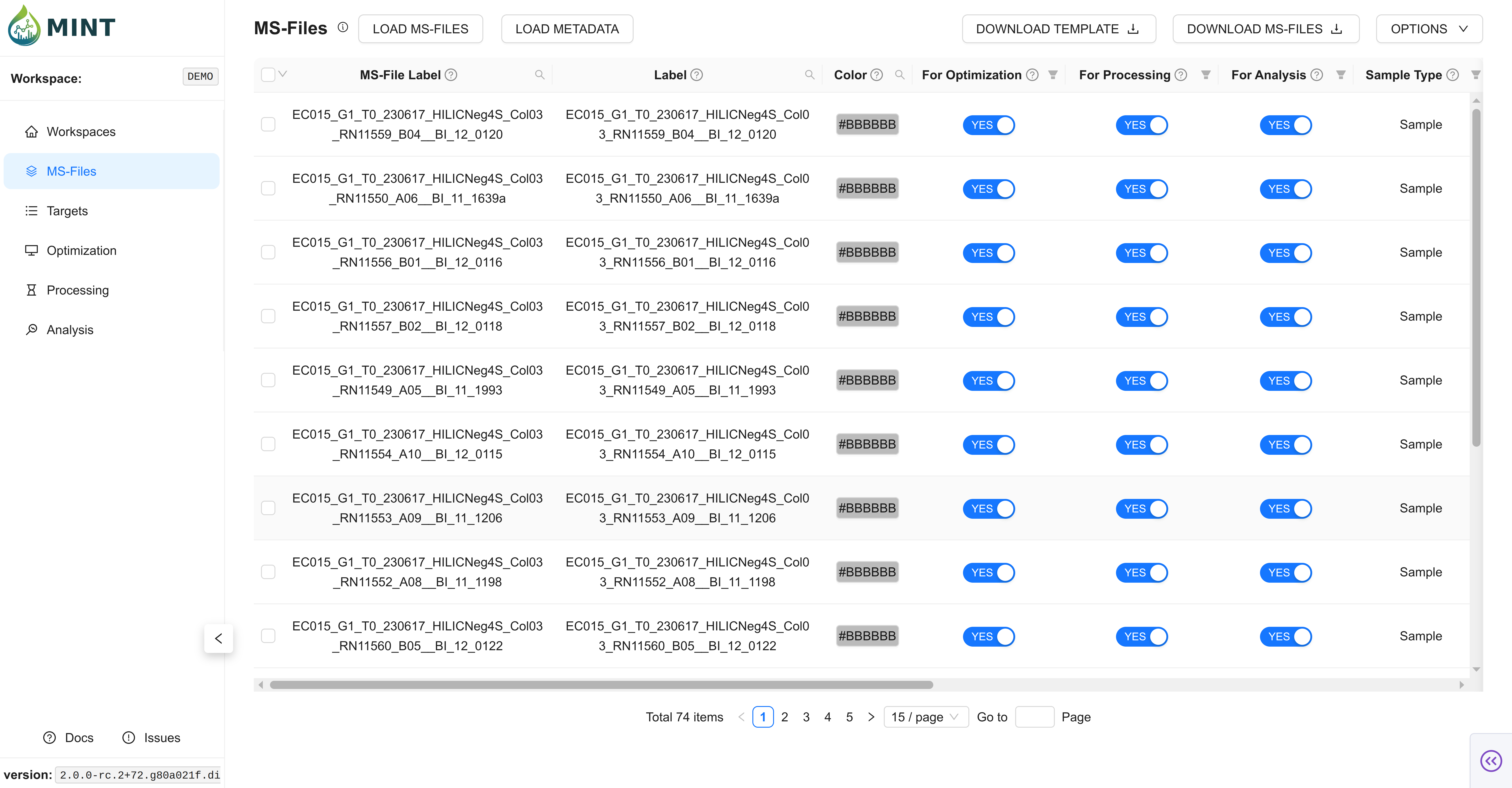
- Checkbox: Select multiple files for batch actions (delete/export).
- Color: Used in plots and previews. You can edit manually or regenerate via
Options. - For Optimization / Processing / Analysis: Toggle inclusion per workflow stage.
- Metadata Columns:
Label,Sample Type, andGroupcolumns help organize downstream analysis. - Acquisition Metadata: MINT stores metadata such as polarity, MS level/type, file format, and acquisition datetime (when available from file headers) and user-defined metadata (e.g., Group 1, 2, etc.).
Import Validation and Auto-Fill
MINT applies several automatic behaviors during MS file and metadata import.
Filename-based sample typing and color defaults
Automatic Sample-Type and Color Inference
When metadata is not provided yet, MINT initializes sample_type and color from MS-file labels:
- Blank-like names (for example
blank,blk,solvent) ->Blank - Standard-like names (for example
std,standard,cal) ->Standard - QC-like names (for example
qc,control,pool) ->QC - If no pattern matches ->
sample_type = Sample - Default fallback color for unmatched samples ->
#BBBBBB
Metadata merge behavior
Metadata Merge Defaults
During metadata import, MINT merges values into existing rows instead of blindly replacing everything.
- Required column:
ms_file_label - On ingestion, blank
use_for_optimizationanduse_for_processingare treated asTRUE - On DB update, non-null metadata values overwrite current values; null/blank values keep existing values
- Colors can be regenerated after merge to keep palettes consistent across sample groups
Workflow flag dependencies
Workflow Dependency Rules
To keep stage flags consistent, MINT enforces:
- If
use_for_analysisis set toTRUE,use_for_processingis auto-set toTRUE - If
use_for_processingis set toFALSE,use_for_analysisis auto-set toFALSE
Duplicate import behavior
Duplicate File Handling
When importing MS files, MINT uses ms_file_label (filename stem) as the identity key.
- Already imported labels are skipped (not duplicated)
- Import summary/notifications report skipped duplicates
Options Menu
The Options dropdown (top right) provides quick actions:
- Generate colors: Recompute colors for table entries.
- Delete selected files: Remove checked rows from the workspace.
- Clear table: Remove all MS files from the workspace.